How-to · 5 min read
How to record a Google Meet meeting
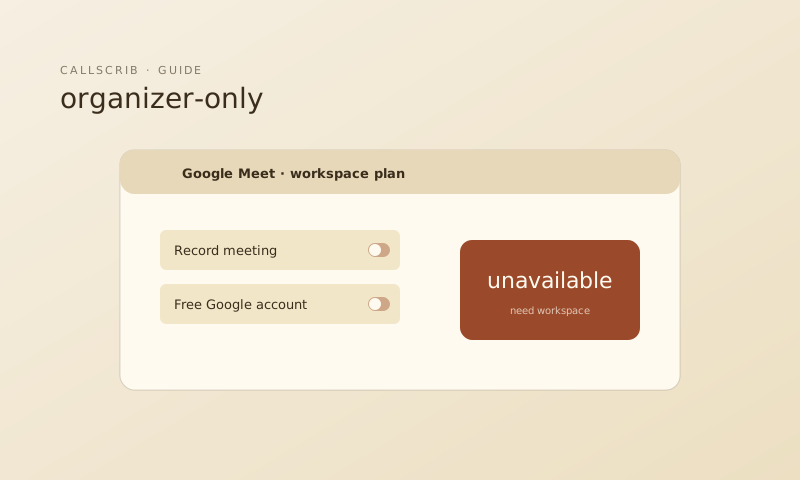
Google Meet recording is locked behind paid Google Workspace plans. If you're on a free Gmail account, the Record button doesn't exist. Even on paid plans, only the organizer can start recording.
How to record a Google Meet (step by step)
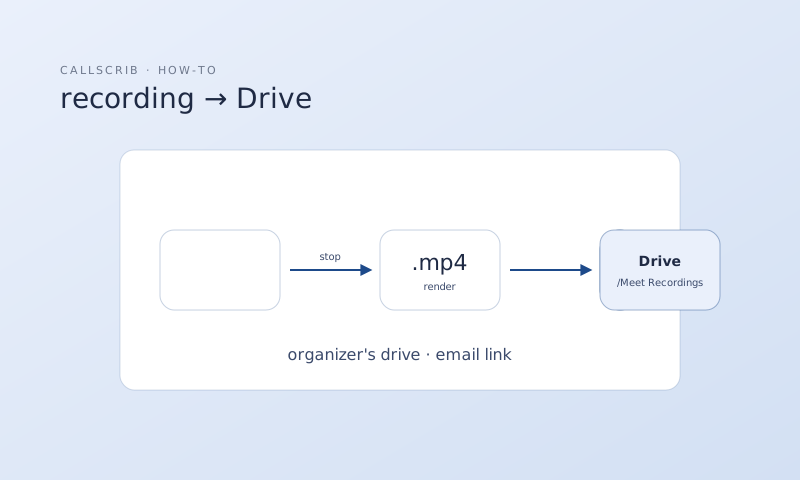
1. Start or join a Google Meet call. 2. Click the Activities icon (bottom right). 3. Click Recording then Start recording. 4. Confirm. A notification tells all participants that recording has started. 5. Click Stop recording when done. 6. The recording is saved to the organizer's Google Drive in a "Meet Recordings" folder.
Which Google Workspace plans support recording?
Recording is available on Business Standard, Business Plus, Enterprise Starter, Enterprise Standard, Enterprise Plus, Education Plus, and Teaching and Learning Upgrade. Not available on free Gmail, Google Workspace Starter, Business Starter, Education Fundamentals, or Education Standard.
What if you can't record?
If you're on a free account or not the organizer: Ask the organizer to record and share the link. Or use the CallScrib desktop app. It runs on your macOS or Windows machine, detects Google Meet calls, and generates AI summaries without any recording or bot. Works with any Google account type.
The AI notetaker built for Microsoft Teams. No bot in your meetings. 7 meetings per month free, no credit card.
Frequently Asked Questions
Can I record Google Meet for free?
No. Google Meet recording requires a paid Google Workspace plan (Business Standard or higher).
Where are Google Meet recordings saved?
The organizer's Google Drive, in a "Meet Recordings" folder. A link is also sent via email and added to the calendar event.
How can I get meeting notes from Google Meet without recording?
Use the CallScrib desktop app. It summarizes Google Meet calls automatically without recording or bots. Works on any Google account.